If you’re learning a riff from a YouTube guitar lesson, the hard part is almost never finding the lesson — it’s playing the same 8 seconds 20 times in a row without losing your place.
Here’s how to do that without scrubbing.
The setup (30 seconds)
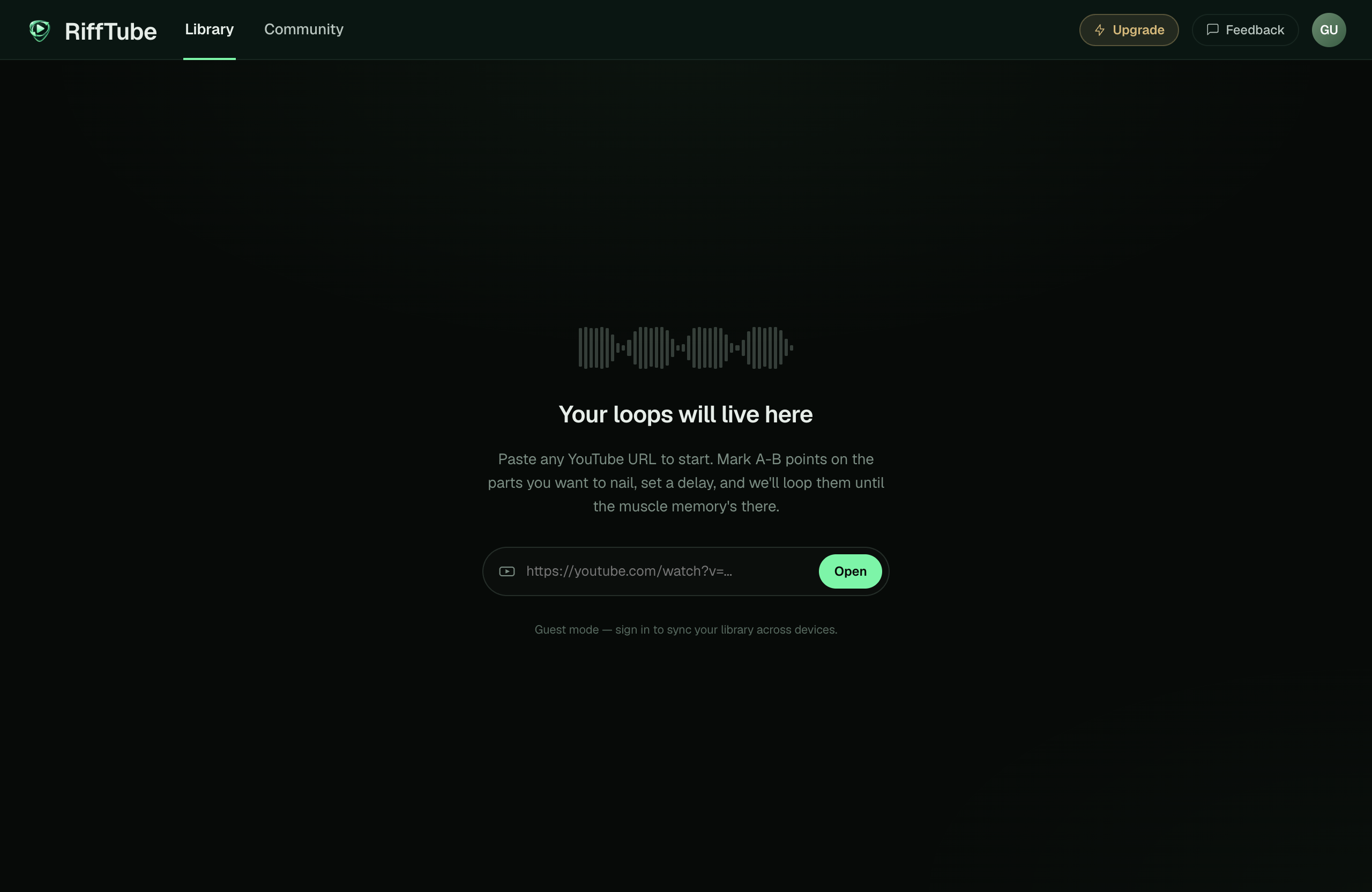
- Open RiffTube in your browser at app.rifftube.app or on your iPhone.
- Paste the YouTube URL of the lesson. The video loads inside RiffTube — the full YouTube player, in-app.
- Play until the start of the section you want to loop. Tap A to set the start point.
- Keep playing to the end of the section. Tap B to set the end point.
- Toggle the loop on. The video now cycles between A and B until you toggle it off.
That’s it. The loop is saved to that video automatically — close the app, come back tomorrow, it’s still there.
Why a real loop beats YouTube’s “Loop” button
YouTube has a built-in loop, but it loops the entire video. For practice that’s the opposite of what you want. You don’t want to hear the teacher introduce the lesson 20 times before the lick comes around again — you want the lick, on repeat.
A real practice loop has three parts YouTube’s built-in option doesn’t:
- Start point and end point — set independently, down to the millisecond.
- Save and name it — so “Verse 1 lick” lives next to “Chorus solo” in the same video.
- Replay delay — a 0–10 second pause between repeats so your hands can reset before the phrase comes around again.
Make the loop smaller than you think
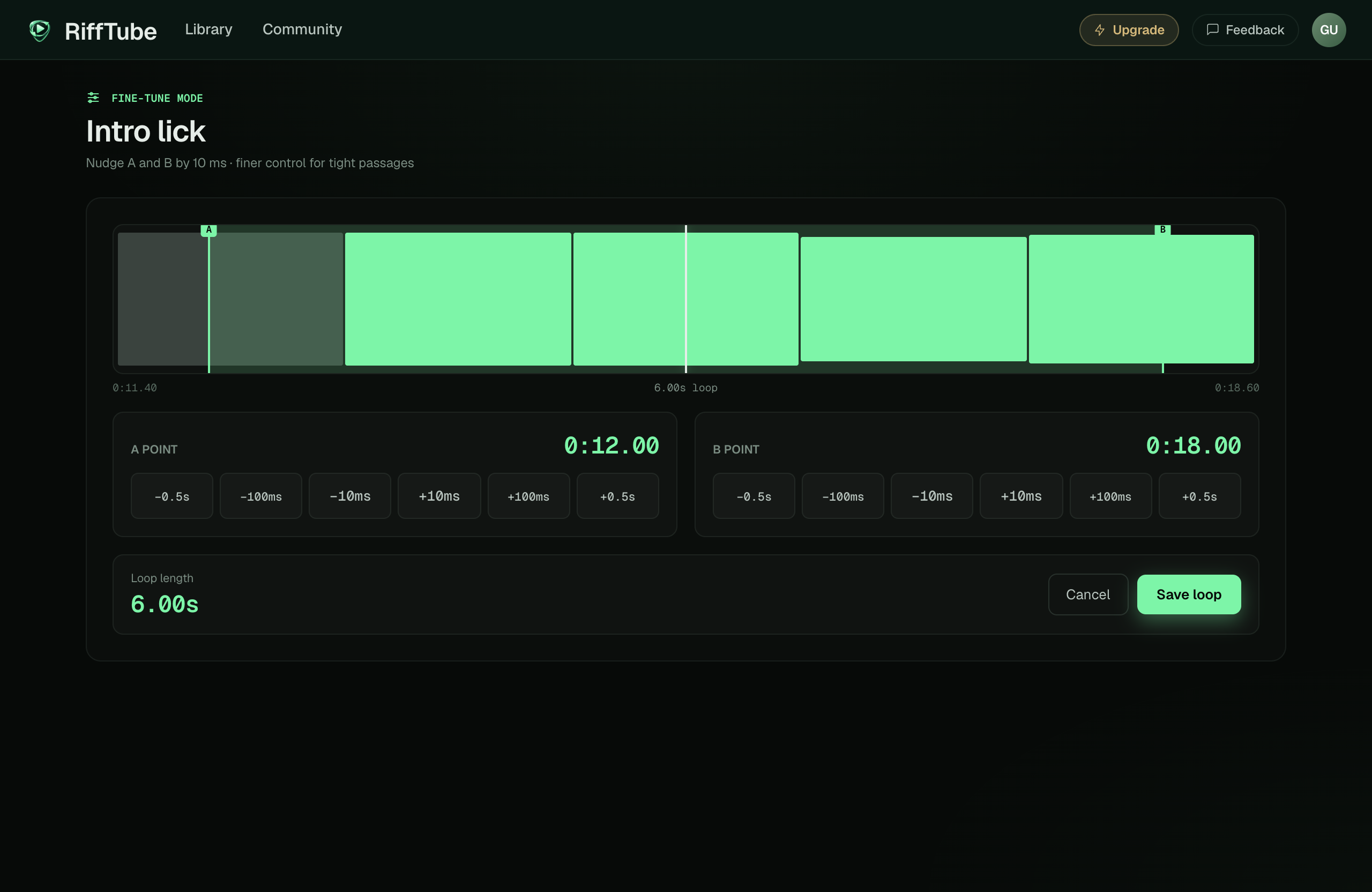
Most people set the loop too wide on the first try. They include the bar before the lick and the bar after, then wonder why the repetition isn’t sticking.
A useful loop is usually 5–12 seconds of pure target material. If you’re looping a solo phrase, that’s one lick, not a whole solo. If you’re looping a chord change, that’s the change and one bar of context, not the whole verse.
When you’ve got the loop nailed at small scale, widen it.
Save it so future-you doesn’t have to do this again
In RiffTube, every loop you set is saved against that video. You can name it (“week 4 chorus”, “the F# bend”), keep multiple loops per video, and pull them up on whichever device is closest next time you sit down.
If you’re a teacher assigning weekly practice, this is the simplest version of “send students the loop”: tell them the URL and the timestamps, they recreate it in 10 seconds, and they actually practice the section instead of replaying the whole lesson.
Try it on a lesson you actually use
The fastest way to know if loops fit your practice is to load the last YouTube lesson you watched, set a loop on whatever part you keep getting wrong, and play it 10 times in a row. You’ll feel the difference in about three minutes.